Ingest (AI) – Intelligent Import of Purchase Invoices
What is Ingest AI?
Ingest AI is an application in the ERP.net web client that automatically reads and imports purchase invoices into the system.
Instead of manually retyping data from paper or PDF invoices, users can:
- Snap a photo of the invoice with their smartphone, or
- Upload a file (image or PDF) from their computer,
Ingest AI converts it into a structured purchase invoice document in ERP.net.
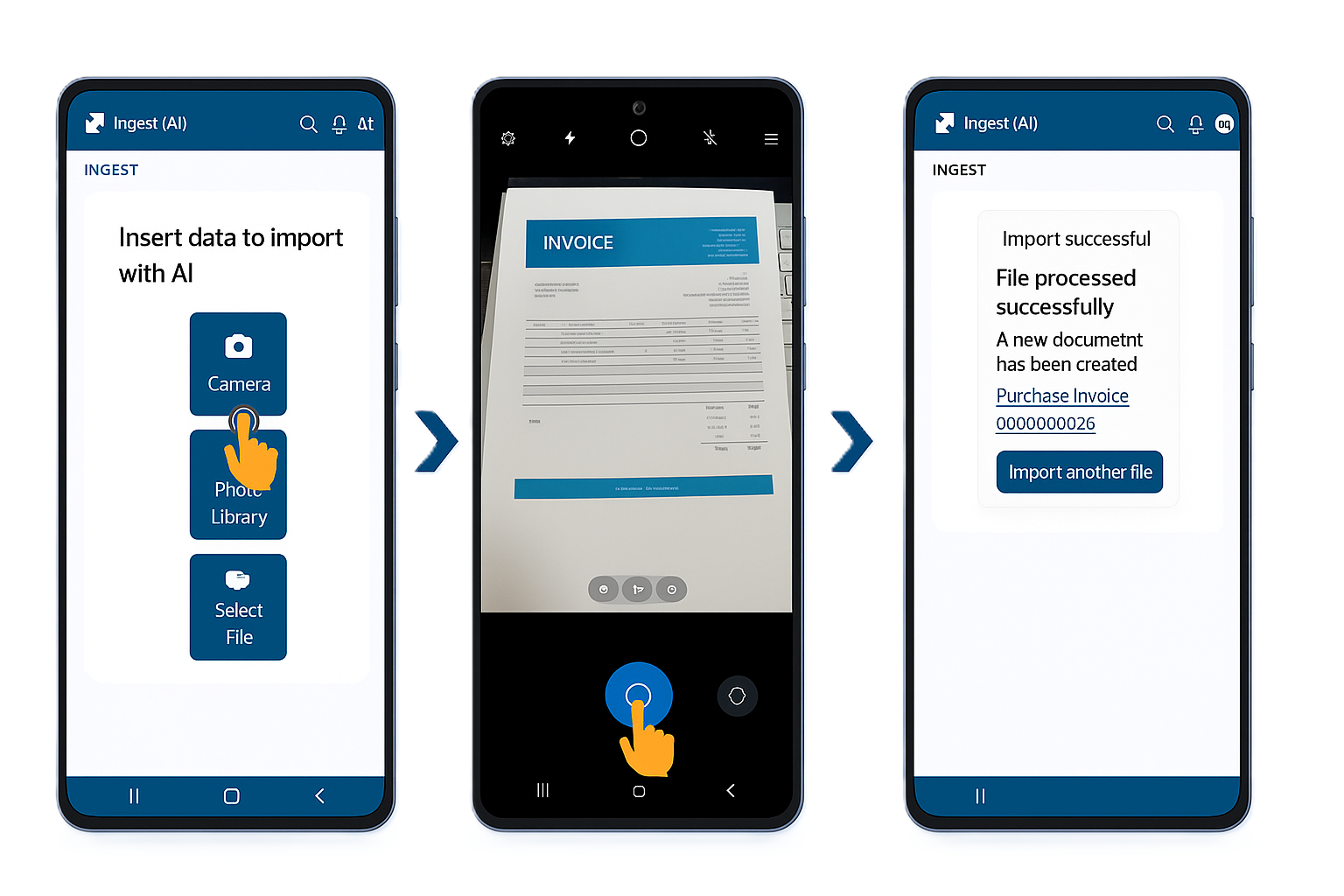
Ingest AI works:
- On mobile – ideal for operational staff and accountants on the go.
- On desktop – for office users who drag & drop or select files from their computer.
The result is:
- Less manual data entry
- Fewer typing mistakes
- More time for higher-value, expert work instead of repetitive keying
Primary use case: service purchase invoices
Ingest AI is optimized for service purchase invoices, where:
- Suppliers often send multi-line invoices, broken down by their internal products/services.
- For accounting and reporting, the customer usually needs one standard internal product or expense (e.g. “External services expense”, “Software subscription”, “Maintenance fee”), not the supplier’s detailed breakdown.
Smart mapping to your internal service product
When a new invoice from a known supplier is imported, Ingest AI:
- Finds the most recent purchase invoice from the same supplier (for up to one year back).
- If that previous invoice is single-line, Ingest AI:
- Reuses the internal product from that line (e.g., your standard “External services” product).
- Copies the quantity and any user-defined attributes, if applicable.
- Uses the net amount from the newly recognized invoice.
- Copies relevant header settings such as:
- Deal type
- Expense center (and revenue center if used)
- Notes/description
This means:
Even if the supplier sends a multi-line invoice, ERP.net can work with a single, standardized line using your internal product for that service, while the detailed supplier structure remains in the attached original document.
Why this is a good practice
From an accounting and process perspective, this approach:
- Reduces complexity by using standard internal products and expense categories.
- Simplifies reporting and analysis – you always see consistent categories, rather than dozens of supplier-specific items.
- Keeps all supplier details accessible but not intrusive – it stays in the scanned/attached document instead of cluttering your accounting lines.
As long as the invoice in the system has:
- Correct supplier and customer
- Correct invoice number and date
- Correct totals (net, VAT, currency)
- The original document is attached
You do not need to replicate the supplier’s line breakdown exactly inside ERP.net.
How Ingest AI works – end-to-end flow
1. Accessing the application
Ingest AI is available in the ERP.net web client:
- From the main menu (as a business app).
- On both desktop and mobile view.
- As an installed mobile app (PWA), for quick access.
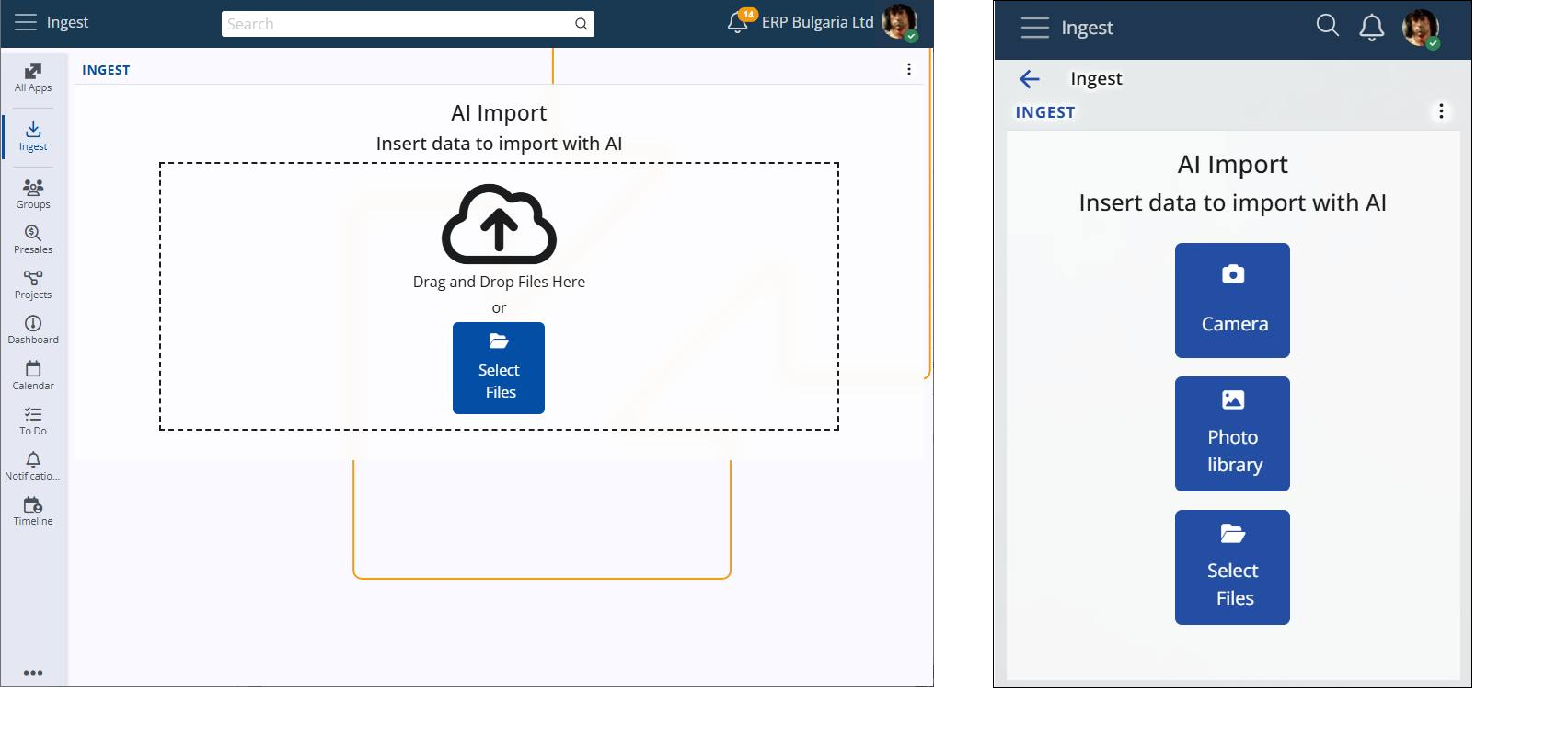
2. Capturing or uploading the invoice
You can provide the invoice to Ingest in several ways:
- Mobile:
- Choose Camera and take a photo of a paper invoice.
- Or pick an existing photo from your gallery.
- Desktop:
- Use Select File to browse and upload.
- Or simply drag & drop the file onto the Ingest screen.
Supported formats include:
- Photos (e.g., from a smartphone camera)
- PDF and other common image formats
Recommendation: Each file should contain exactly one invoice.
For multi-page invoices, include all pages in a single file.
3. AI recognition
Once the file is uploaded, Ingest AI sends it to the AI model, which reads and structures the data. It recognizes core fields such as:
- Document type (e.g., Purchase Invoice, Credit Note)
- Invoice number
- Invoice date
- Supplier name
- Customer (your company)
- Registration / Tax number
- Address
- Total net amount
- VAT and total amount (depending on configuration)
- Currency
The AI is designed to work reliably even with:
- Scanned paper invoices
- Hand-written or partially hand-written invoices (where legible)
Names of companies are normalized to avoid problems with:
- Extra dots and dashes
- Different quote characters
- Mixed case or spacing
This improves matching to existing supplier records.
4. Reviewing recognized data
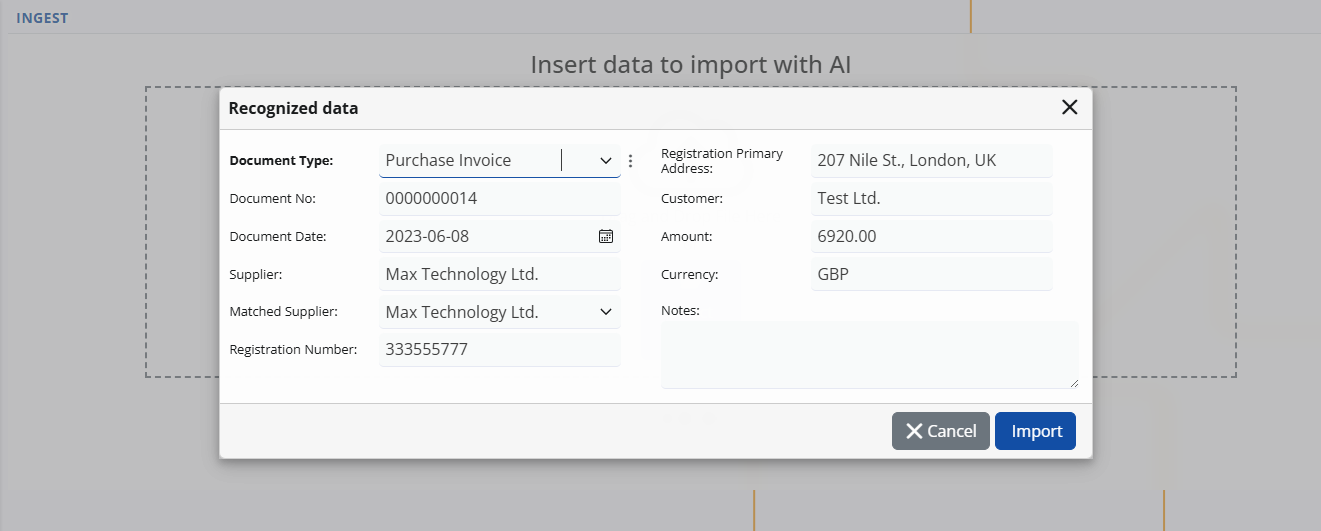
After recognition, Ingest AI displays a “Recognized data” panel where the user can:
- Review the extracted fields.
- Correct any values (e.g., date, number, supplier match, amount, currency).
- Add or edit notes.
Key fields such as:
- Supplier
- Customer
- Document number
- Date
- Net amount
- Currency
They are visible and editable, so the person has full control before importing.
In most cases, the user simply reviews and presses Import, because the recognition accuracy is very high.
5. Validation and safety checks
Before creating the purchase invoice in ERP.net, Ingest AI performs several checks:
Recipient company check
- Ensures that the customer on the invoice equals the current enterprise company in ERP.net.
- If there is a mismatch, import is stopped with a clear error message.
Duplicate invoice check
- Checks whether there is an existing, non-voided purchase invoice for:
- The same supplier
- The same document number
- The same enterprise company
- If a match is found, Ingest AI blocks creation of a duplicate invoice.
- Checks whether there is an existing, non-voided purchase invoice for:
Document validity
- If the AI cannot recognize the document as a valid purchase invoice (missing supplier, customer, number, date, etc.), the import is not allowed.
These controls ensure that automation does not introduce duplicates or incorrect company mappings.
6. Creating the purchase invoice
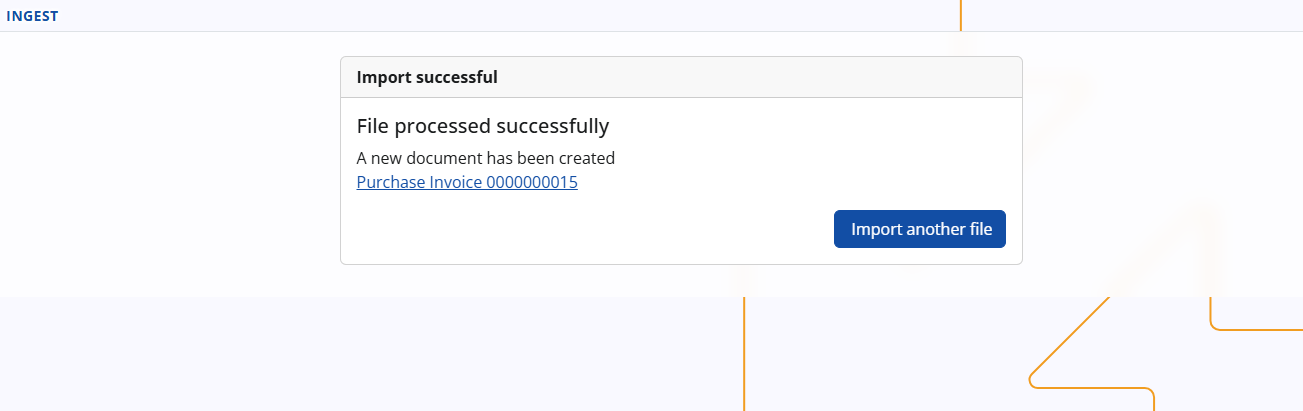
If validation passes and the user confirms:
- A new Purchase Invoice document is created in ERP.net.
- Header fields are filled with the recognized and/or corrected data.
- Ingest applies the smart mapping logic:
- Looks up the most recent invoice for this supplier.
- Reuses the internal product and key settings if that invoice is single-line.
- Copies deal type, cost center, and notes.
- Sets the line amount to the net amount of the newly recognized invoice.
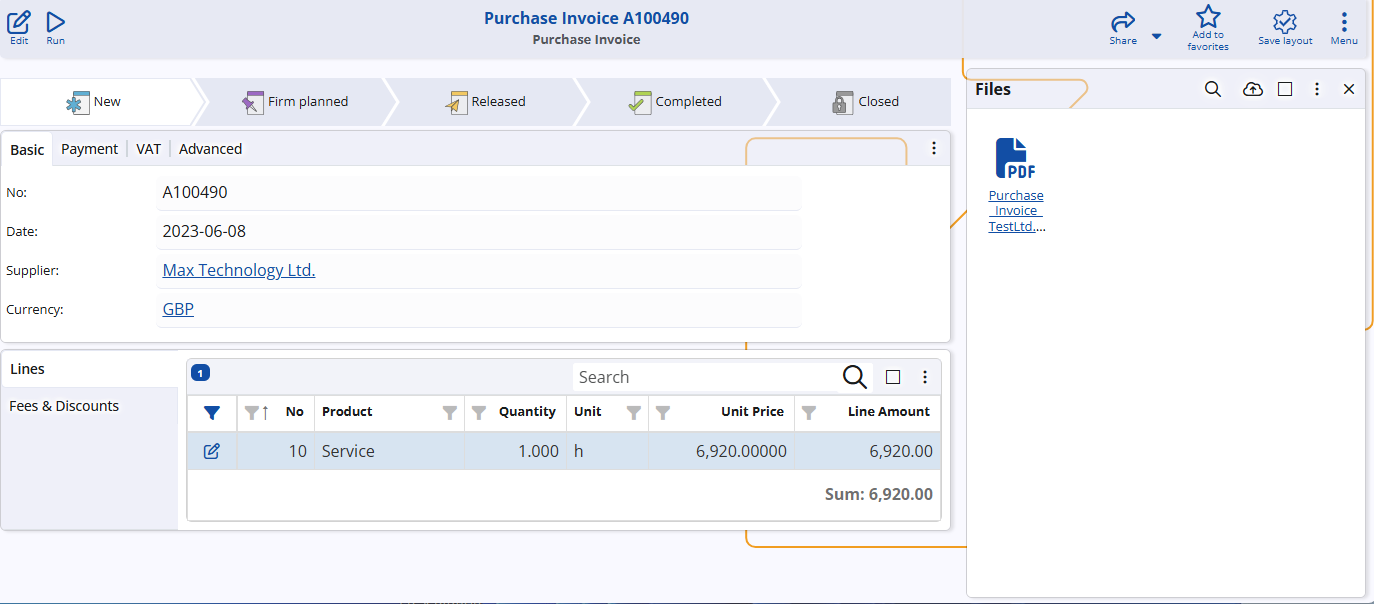
- The original file (image or PDF) is attached to the invoice.
- VAT and other distributed amounts are recalculated automatically based on the totals.
The user then sees:
- The fully created purchase invoice with:
- VAT and totals
- Service line(s)
- The attached invoice file can be opened directly in the web client without downloading.
The accountant can do a final review and post the document as usual.
Limitations and known behaviors
- Each uploaded file should contain one invoice.
- Multi-page invoices must be in a single file (multi-page PDF or multi-page image).
- Some environments (like the new Outlook web interface) may limit drag & drop directly from email; in such cases, save the file locally first and then upload it to Ingest AI.
- Response time depends on the AI service; slow or unstable connections to the AI server can increase processing time.
Requirements
To use Ingest AI, you need:
- License: X13 – Advanced AI
- AI Server site: An active AI Server Site
- AI provider: At least one configured AI Provider
- AI model: A default AI model
The technical setup of the AI Server Site, AI Provider, and default model is described here: How to set up AI in ERP.net