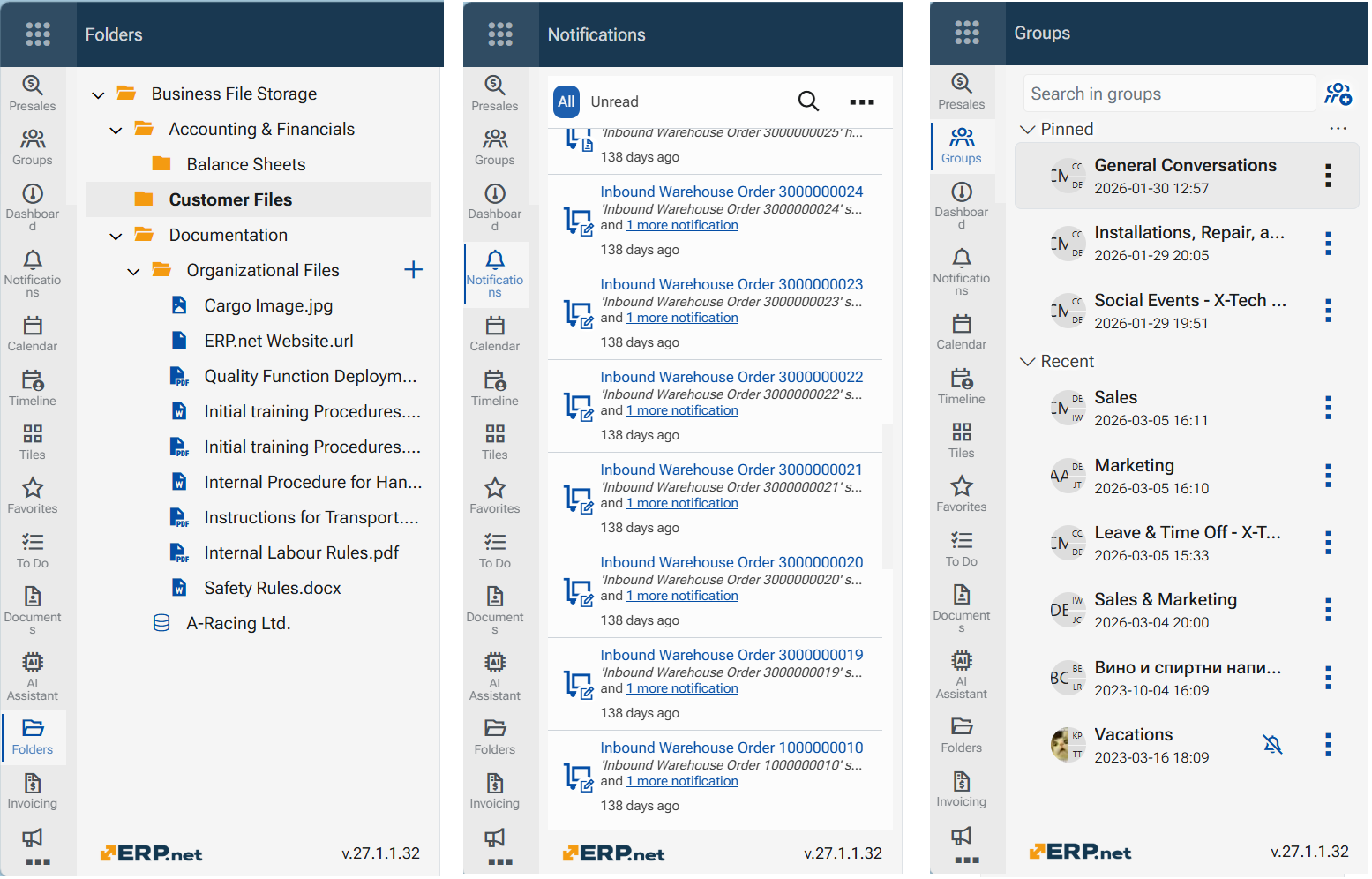
Navigation panel
Overview
The Navigation panel is the main navigation area within an application in the ERP.net Web Client. It provides access to the application's components and functions and helps users quickly move between the areas they need for their work.
The content of the Navigation panel depends on the currently opened application. It can include navigation items for accessing records and other application components, as well as Favorites for frequently used items.
The panel can also be organized according to the user's preferences, making commonly used items easier to access.
Navigation panel elements
The Navigation panel changes its content according to the current navigation level. It first provides access to the available clusters and modules and, after a module is selected, displays the navigation items available for its repository.
Panel controls
The top of the Navigation panel provides controls for working with the panel itself:
- Search – searches the items available in the Navigation panel.
- Settings – provides options for organizing the Navigation panel.
- Pin – keeps the Navigation panel visible while working in the ERP.net Web Client.
Clusters and modules
The initial navigation structure organizes the functionality of the ERP.net Web Client into clusters and modules.
- Clusters group modules into major functional areas, such as CRM, Finance, Logistics, and Production.
- Modules provide access to a particular functional area within a cluster. For example, the CRM cluster includes modules such as Presales, Sales, Marketing, and Pricing.
Selecting a module opens the navigation structure of its corresponding repository.
Repository navigation
The repository navigation provides several main entry points (eg."Presales" repository):
- Overview – opens the homepage of the selected module.
- Notifications – provides access to notifications related to the current module.
- Menu – contains the repository entities and other navigation items available to the current user. The current user role is displayed below the Menu label. Each item in the Menu can include a short description indicating its purpose.
- Pinned - provides access to pinned items.
- Favorites – provides quick access to a maximum of 15 favorite records.
- Recent – provides quick access to a maximum of 15 recently opened records under the current module only.
- Running section appears when a record is opened in the main content area. The displayed item changes according to the content currently open in the main area.
The Navigation panel provides access to the resources available in its repository (eg."Presales" repository):
Current role
Under Menu sits the current role of the logged-in user. WebClient layouts, navigation layouts are organized per role.
Аctions
When the pointer hovers over a section or an entity, the available action icons appear to the right side.
- Menu settings - allows users to show or hide repository elements in the Navigation panel, so the Menu can be adjusted to contain only the items relevant to their work.
- Layouts (eye icon) – displays the available named layouts for the entity's navigator. Selecting a layout opens the navigator with that layout.
- Create (plus icon) – displays the available types of records that can be created for the entity. Selecting a type starts the creation of a new record directly from the Navigation panel.
Recent and favorite records
When an entity is expanded, the Navigation panel can display up to five recently opened records, as well as records marked as Favorites.
A label below each record indicates why it appears in the list:
- Recent – the record is one of the recently opened records for the entity.
- Favorite – а record that is a Favorite has been recently opened. Selecting a record opens it directly from the Navigation panel.
Operations
When a user logs in to the ERP.net Web Client, the homepage of the module configured as First in the App-bar customization is opened by default. The Navigation panel displays the navigation items of the corresponding repository.
In the App-bar the active module's icon is outlined in blue and a solid blue vertical line.
Switch modules from the Navigation panel
- Select the Start button.
- The Navigation panel displays the available clusters and modules.
- The currently active module remains highlighted, making it easy to identify the user's current location.
Select a module to open its homepage and load its repository navigation in the Navigation panel.
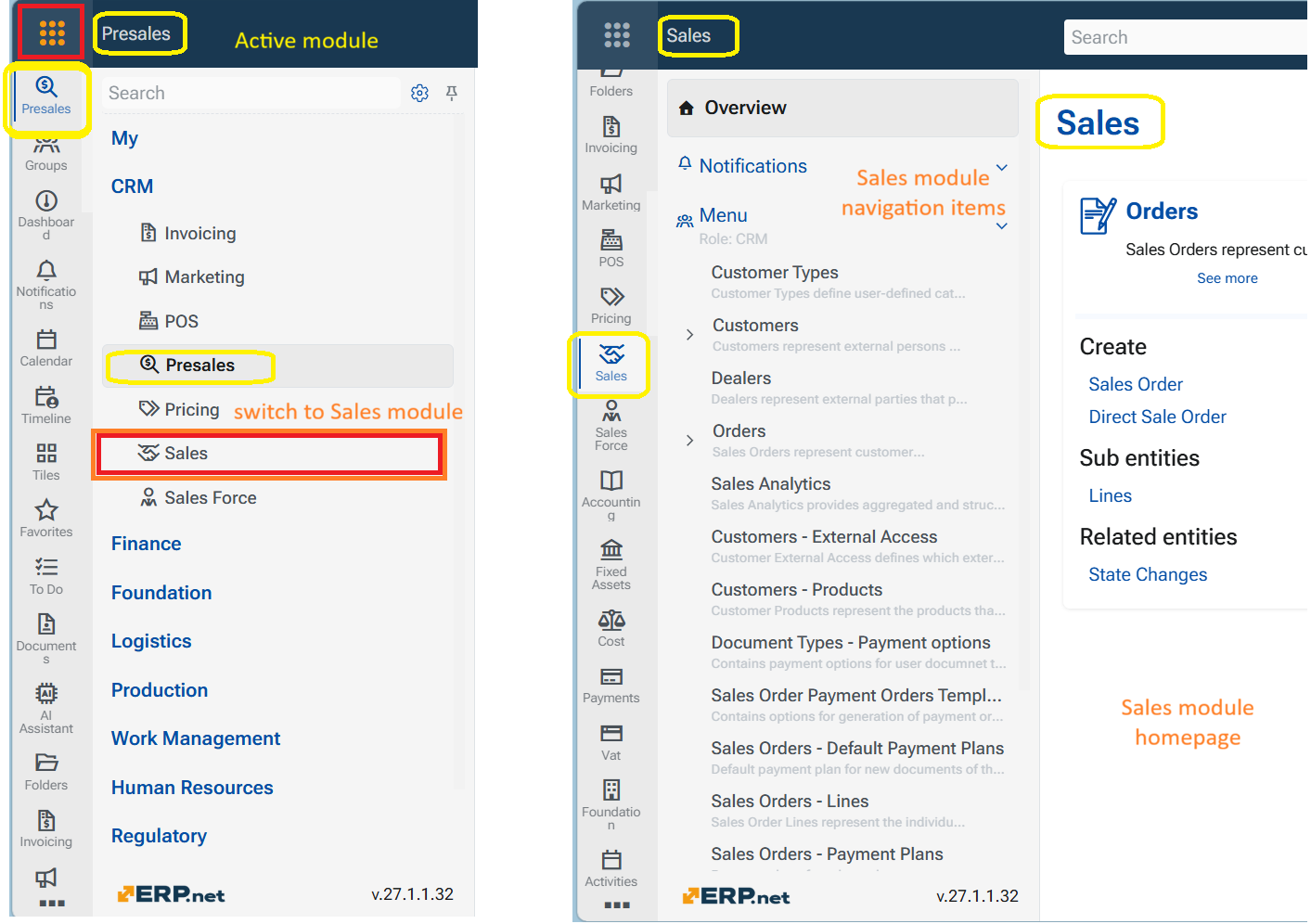
Switch modules from the App-bar
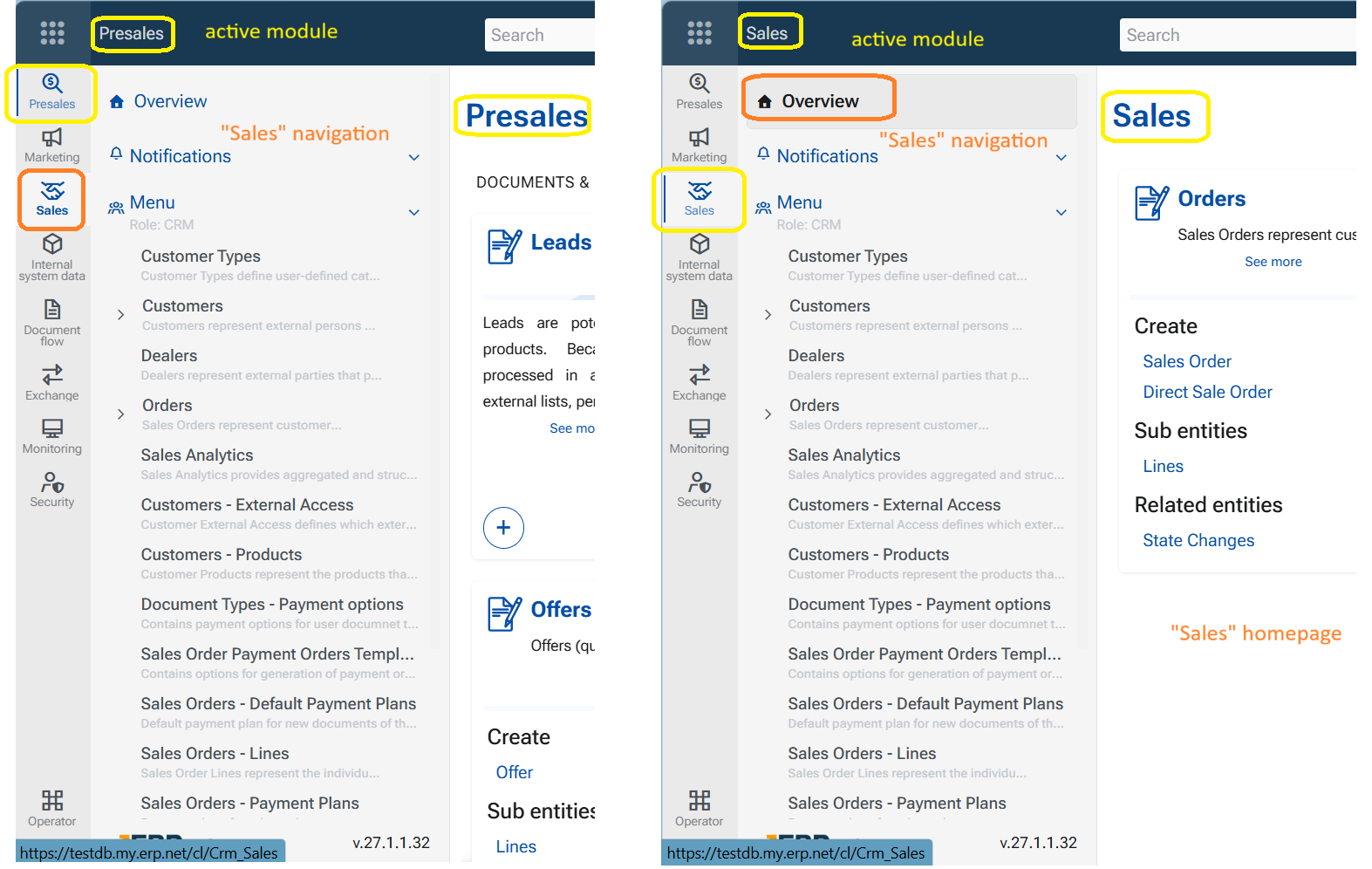
- Select the icon of the required module in the App-bar.
- The module's icon is outlined in blue and has a lighter background.
- The Navigation panel displays the items of the selected repository.
- Click Overview to open the module's homepage in the main content area.
When the homepage is loaded, a solid blue vertical line appears to the left of the module icon, indicating that the module is now active. (eg. switch from "Presales" to "Sales")
Search in the Navigation panel
Use the Search bar at the top of the Navigation panel to find modules, entities, and subentities across the ERP.net Web Client.
The search is not limited to the items currently displayed in the Navigation panel. It searches deeper within the platform navigation structure and returns matching items even when they are not currently exposed in the panel.
For example, searching for balance reduces the Navigation panel to modules, entities, and subentities whose names contain balance.
Tip
Use Search when you know the name or part of the name of an entity but do not know where it is located in the module structure.
Pin or unpin the Navigation panel
Use the Pin icon at the top of the Navigation panel to keep the panel constantly available on the left side of the screen. When the panel is unpinned, it does not remain permanently open while working in the main content area.
The same behavior can be controlled with the Pin navigation toggle in the App-bar menu.
Customize the Navigation panel
Use the Settings icon at the top of the Navigation panel to choose which modules are displayed.
- Select the Settings icon.
- In the settings dialog, choose the modules that you want to be available in the Navigation panel.
- Hide the modules that you do not need for your regular work.
This allows the module selection to be adjusted to the user's needs.
Show or hide repository elements
The Settings icon next to Menu controls the elements displayed for the current repository.
- Open the required module.
- Select the Settings icon next to Menu.
- Show the repository elements that you need in the Navigation panel.
- Hide the elements that you do not need.
The available repository elements depend on the user's current role.
Together, the Navigation panel settings and the repository Menu settings allow users to customize navigation at different levels. The main settings determine which modules are available, while the Menu settings determine which repository elements are displayed within a particular module.
Pin an item for quick access
Individual repository elements and records can also be pinned to the Navigation panel for quick access.
To pin an item:
- Right-click the repository element or record.
- Select Pin.
The item is added to the Pinned section of the Navigation panel and remains readily available for direct access.
To remove it:
- Right-click the item in the Pinned section.
- Select Unpin.
Navigation of "My apps"
The apps available under My have their own Navigation panels, designed according to the functionality of the particular app. Their navigation can therefore differ from the standard repository navigation used by the other modules.