Create a basic promotional package
This example shows how to create a basic promotional package and verify that its products, quantities, and unit prices are applied in a sales order.
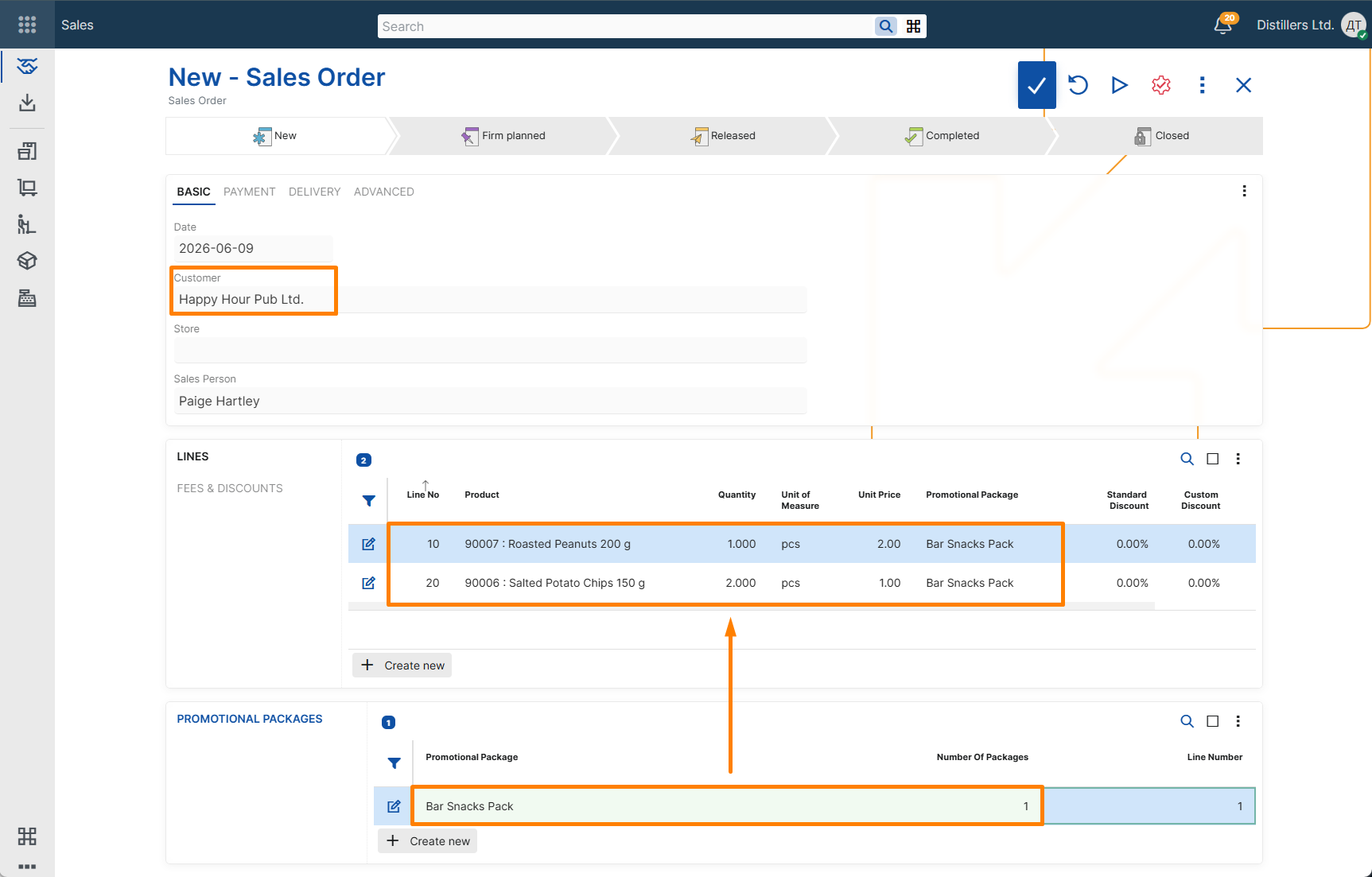
When the package is applied in a sales order, ERP.net adds the package products as separate sales order lines.
Steps
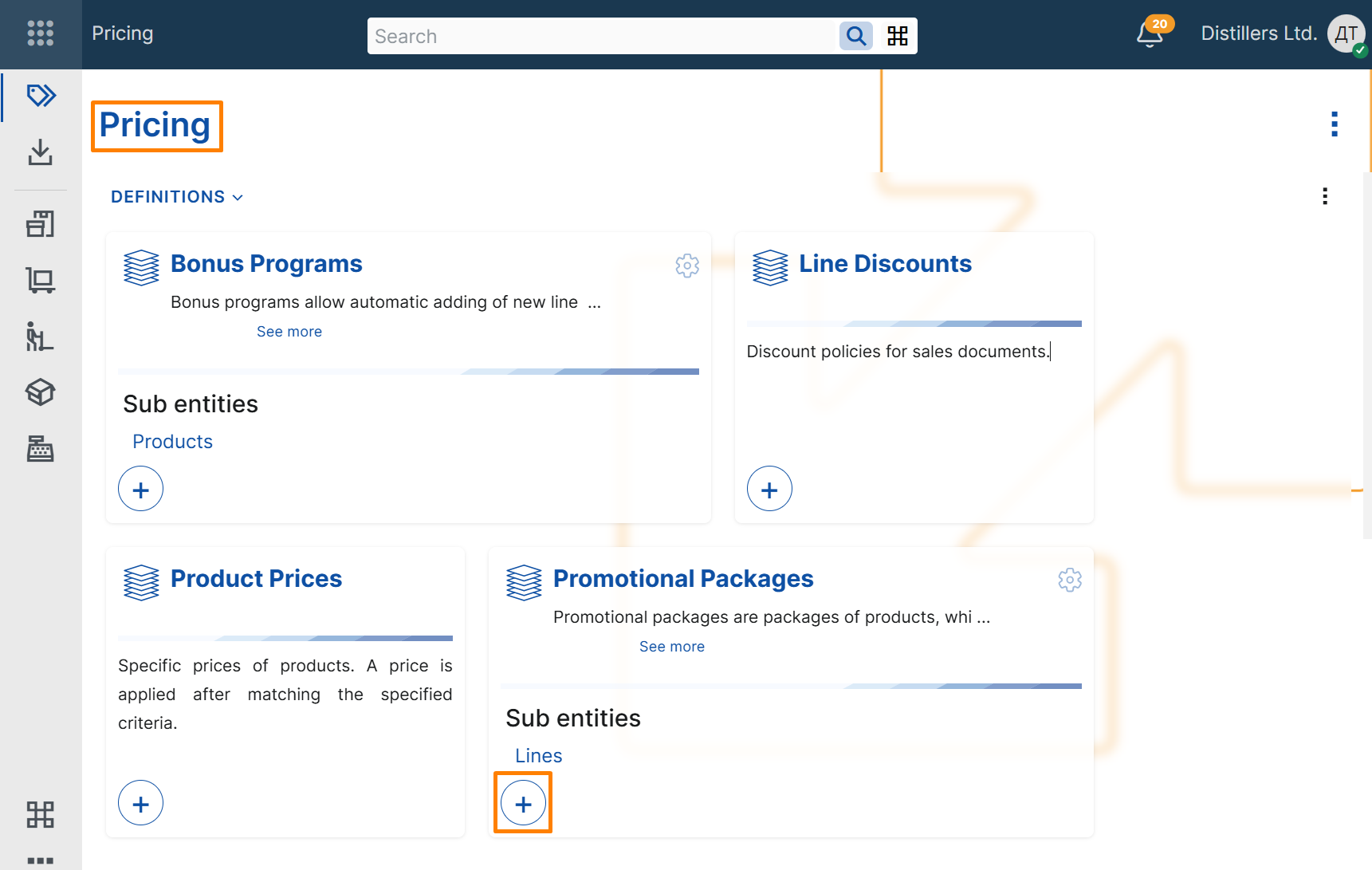
- Open the Pricing module.
- In the Promotional Packages tile, select the + button.
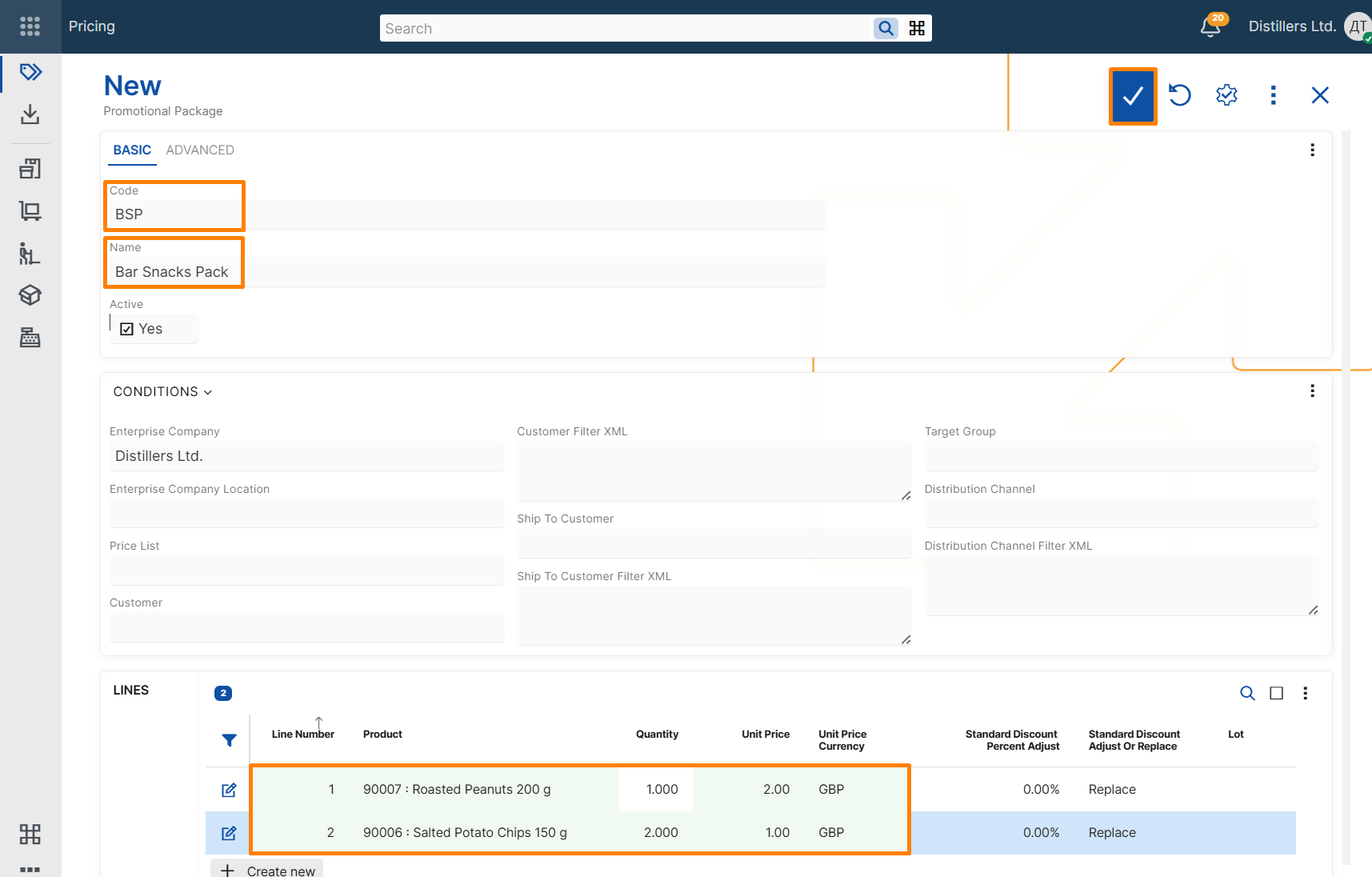
- In the header of the new promotional package record, enter the following:
- Code – unique identifier of the promotional package.
- Name – descriptive name of the promotional package.
Note
Enterprise Company is filled in automatically with the current enterprise company.
- Add two package lines.
For each line, specify:
- Product – product included in the promotional package.
- Quantity – quantity of the product included in one package.
- Unit Price – unit price to be applied for the product.
- Unit Price Currency – currency of the specified unit price.
- Save the record.
The package is now ready to be applied in a sales order where its conditions are met.
Apply the package in a sales order
- Create a new Sales Order.
- Select a customer.
- In the Promotional Packages panel:
- in the Promotional Package field, select the newly created promotional package;
- in the Number Of Packages field, specify how many times the package must be applied in the document.
Verify the result
When the package is applied:
- the package products are added as separate sales order lines;
- the quantity in each generated line is calculated according to the package line quantity and the number of packages;
- the unit price in each generated line is taken from the corresponding package line.
The Promotional Package field in the generated lines contains a reference to the promotional package.