Create a basic line discount
This example shows how to create a basic line discount and verify that it is applied in a sales order.
Steps
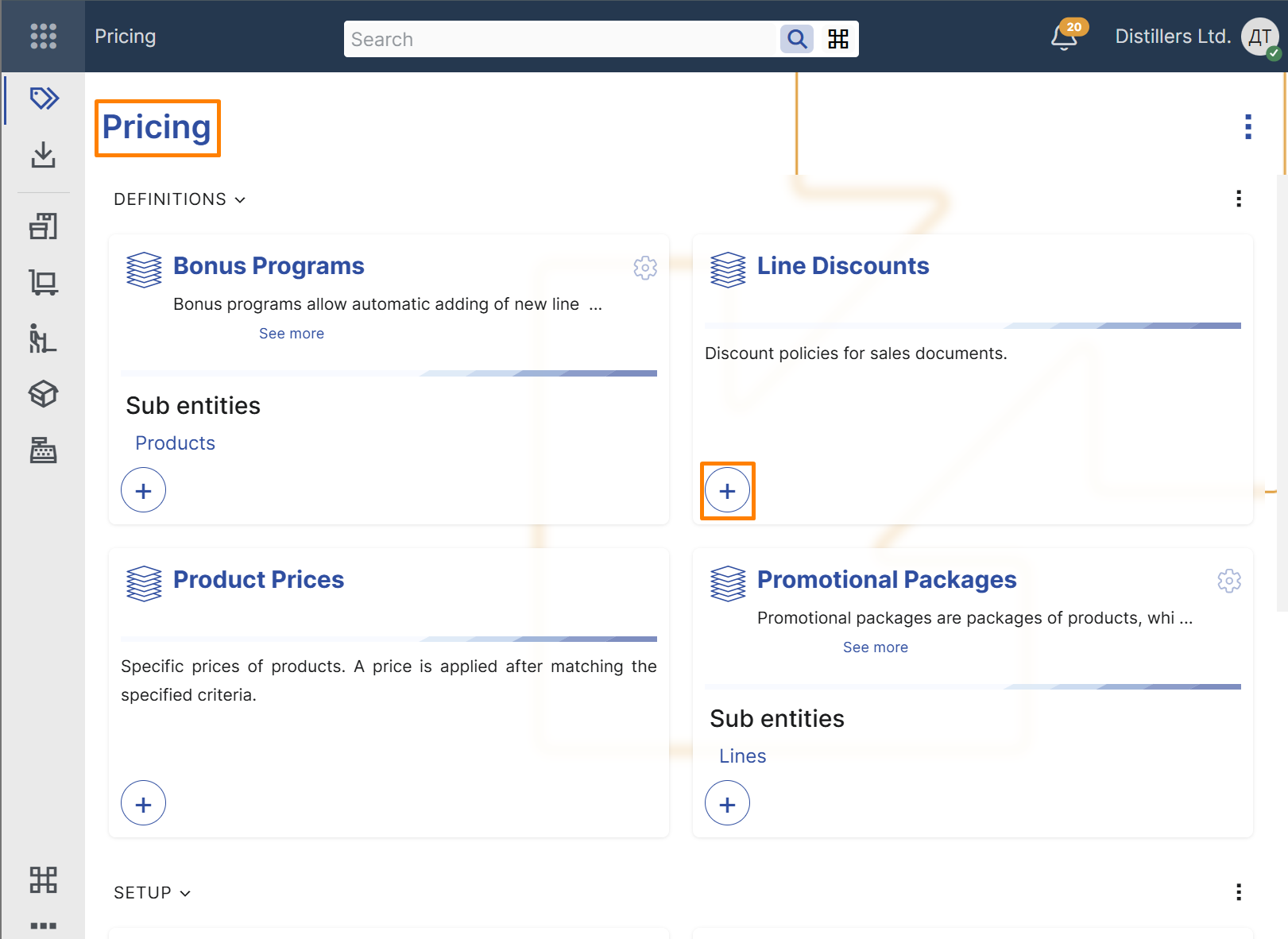
- Open the Pricing module.
- In the Line Discounts tile, select the + button.
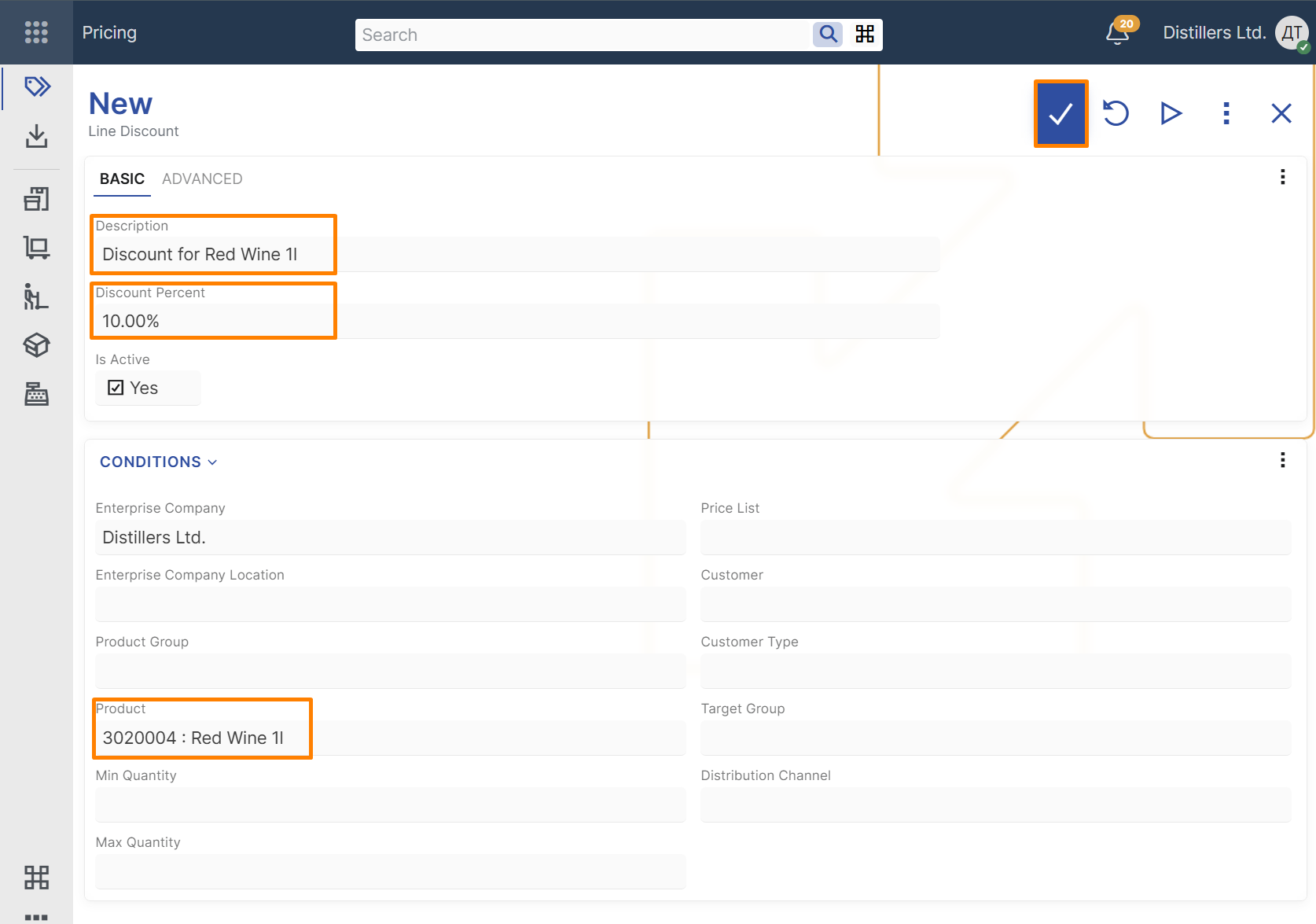
- In the new line discount record, enter the following:
- Description – text that identifies the discount
- Discount Percent – the discount percentage to apply
- Product – the product for which the discount is defined
- Save the record.
Note
Enterprise Company is filled in automatically with the current enterprise company.
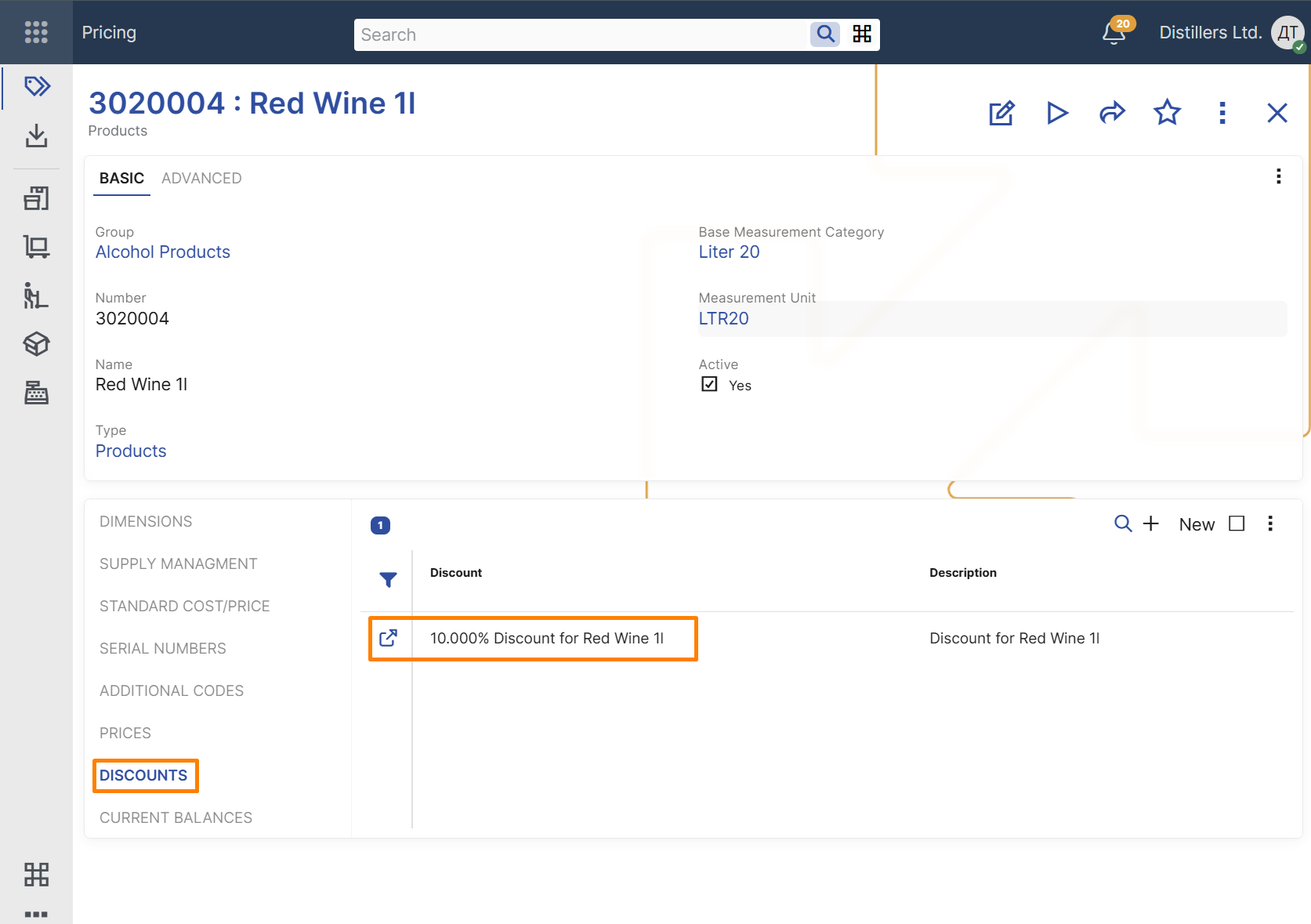
Tip
You can also open the product definition and review the created discount in the Discounts panel.
Verify the result
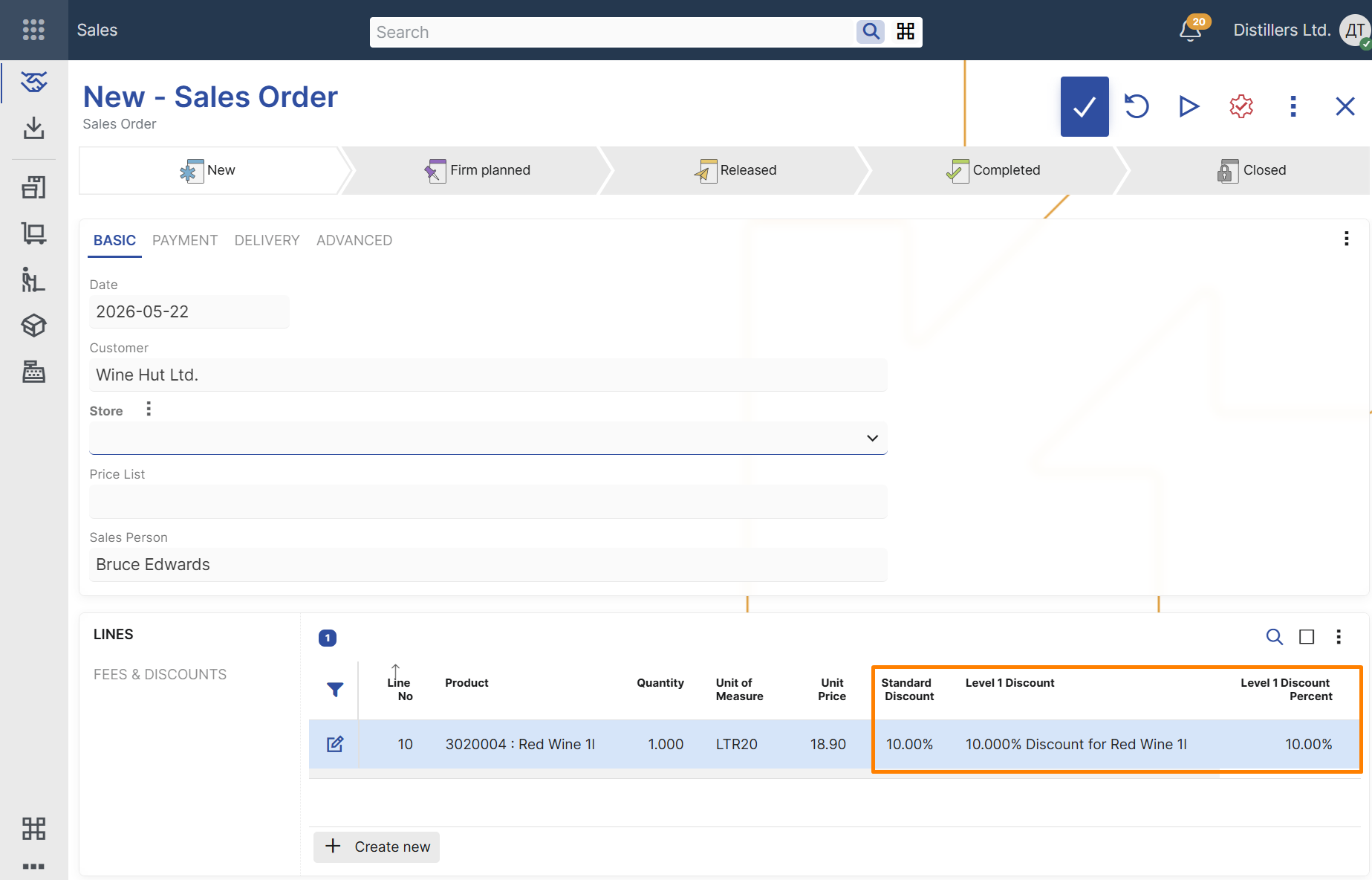
- Create a new Sales Order.
- Select a customer.
- Add a line for the same product.
- Review the values in the Level 1 Discount, Level 1 Discount Percent, and Line Standard Discount Percent fields.
The Level 1 Discount field should contain a reference to the line discount that was just created.
The Level 1 Discount Percent field should contain the discount percent from the selected line discount.
The Line Standard Discount Percent field should contain the calculated discount applied to the sales order line.