Set up line discount categorization
This guide shows how to categorize a line discount and verify the resulting discount amount in a sales order.
You will:
- create a discount category;
- assign the category to a line discount;
- apply the discount in a sales order;
- verify the calculated, categorized, and distributed discount amounts.
Step 1: Create a discount category
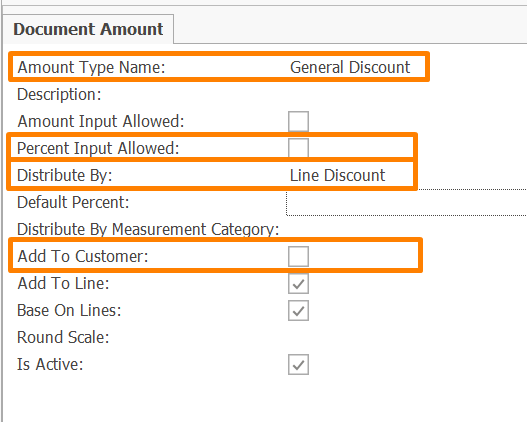
Create a new Document Amount Type record.
Enter the following:
- Amount Type Name - a recognizable name, such as
General Discount. - Distribute By - select Line Discount
- Percent Input Allowed - set to False
- Add To Customer - set to False
- Leave the remaining fields with their default values and save the record.
The document amount type defines the category under which the calculated discount amount will be recorded.
Step 2: Create and categorize a line discount
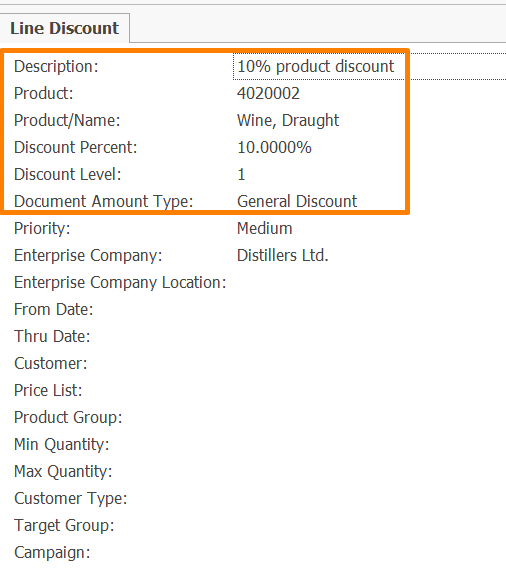
Create a new Line Discount record.
Enter the following:
- Description – a meaningful description, such as
10% product discount - Discount Percent –
10% - Product – select the product that will be used in the example
- Document Amount Type – select the
General Discountcategory created in the previous step
- Leave the remaining fields with their default values and save the record.
Step 3: Create a sales order that meets the line discount conditions
Create a new Sales Order.
Select a Customer and Document Currency.
Add a line with the product specified in the line discount definition.
For an easily verifiable example, enter:
- Quantity –
10 - Unit Price –
100.00
- Save the sales order.
The original amount of the sales order line is:
10 × 100.00 = 1,000.00
Verify the result
After saving the sales order, verify that the discount is calculated, categorized, and distributed correctly.
Verify the calculated discount
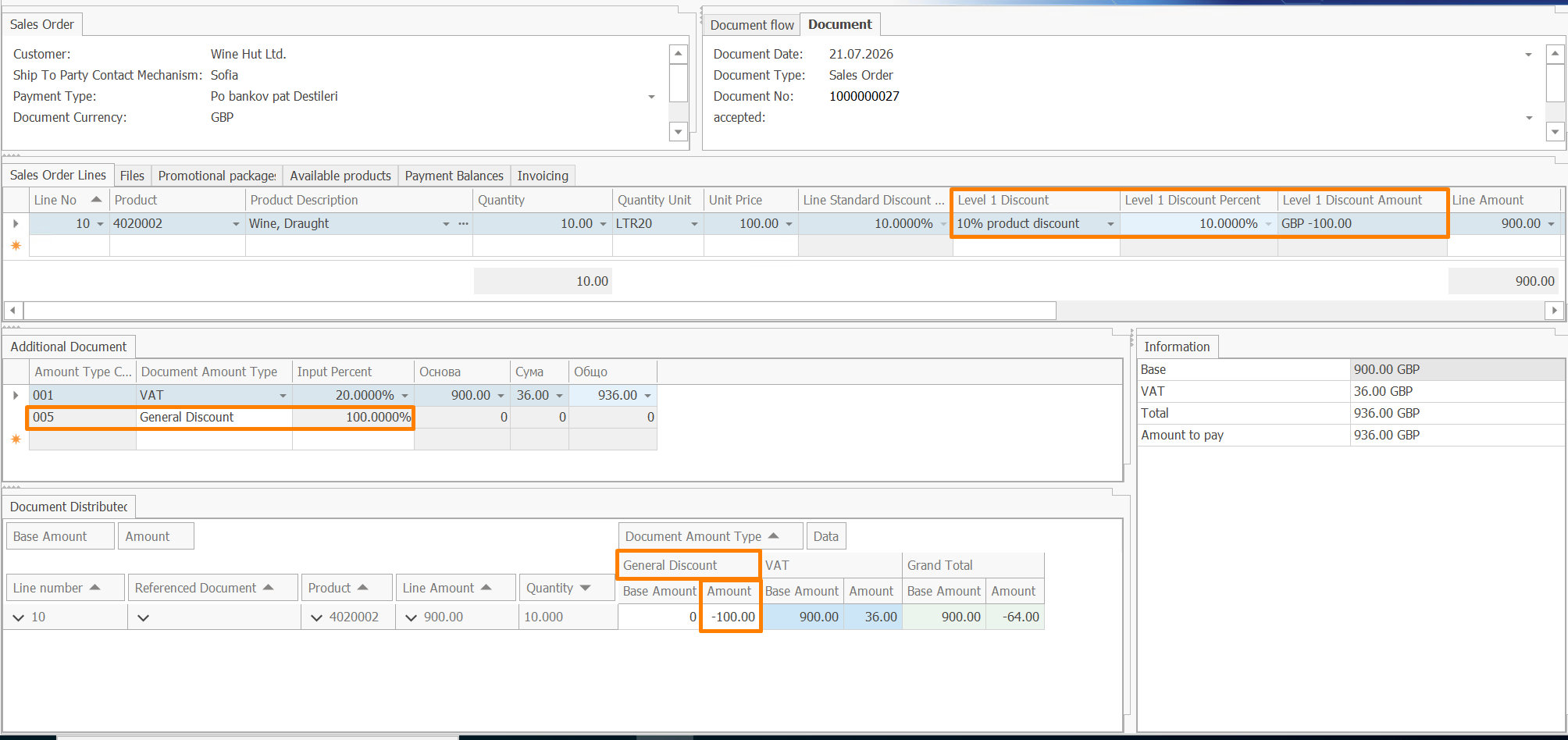
In the Sales Order Lines panel, review the following fields:
- Level 1 Discount –
10% product discount - Level 1 Discount Percent –
10% - Level 1 Discount Amount –
-100.00 - Line Amount –
900.00
The line discount reduces the original line amount by 10%:
Discount amount = 1,000.00 × 10% = 100.00
Line amount = 1,000.00 - 100.00 = 900.00
The Level 1 Discount Amount is displayed as -100.00 because the discount reduces the value of the sales order line.
Verify the discount category
In the Additional Document Amounts panel, verify that a record was created automatically with:
- Document Amount Type –
General Discount - Input Percent –
100%
The 100% input percent means that the entire calculated discount amount is assigned to the selected category. It is not the discount percent applied to the sales order line.
Verify the distributed amount
In the Document Distributed Amounts panel, locate the sales order line and review the General Discount column.
The distributed amount should be:
-100.00
This confirms that the complete discount amount recorded under the General Discount category is assigned to the affected sales order line.
Expected result
The sales order contains the discount in three related forms:
- The calculated discount amount of
-100.00is displayed in Level 1 Discount Amount. - A record for the
General Discountcategory is created in Additional Document Amounts. - The amount of
-100.00is assigned to the affected sales order line in Document Distributed Amounts.
The same approach can be used to categorize discounts from bonus programs and promotional packages. For each discount source, use a document amount type with the corresponding Distribute By value.
For the complete setup options, see Configuration.
For information about calculation, rounding, and distribution, see Concepts.