Create a basic product bonus program
This example shows how to create a basic product bonus program and verify that it is applied in a sales order.
Steps
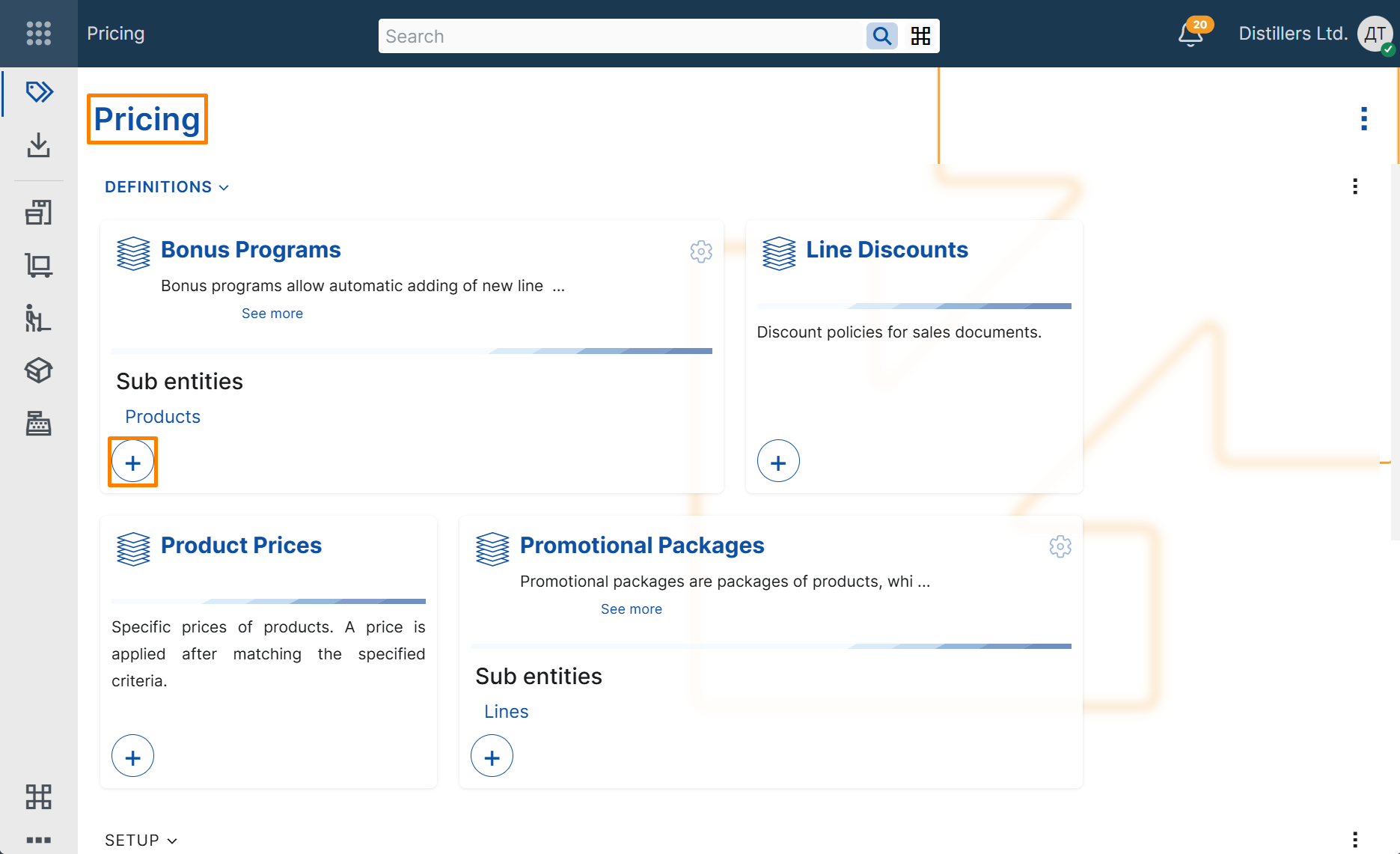
- Open the Pricing module.
- In the Bonus Programs tile, select + button.
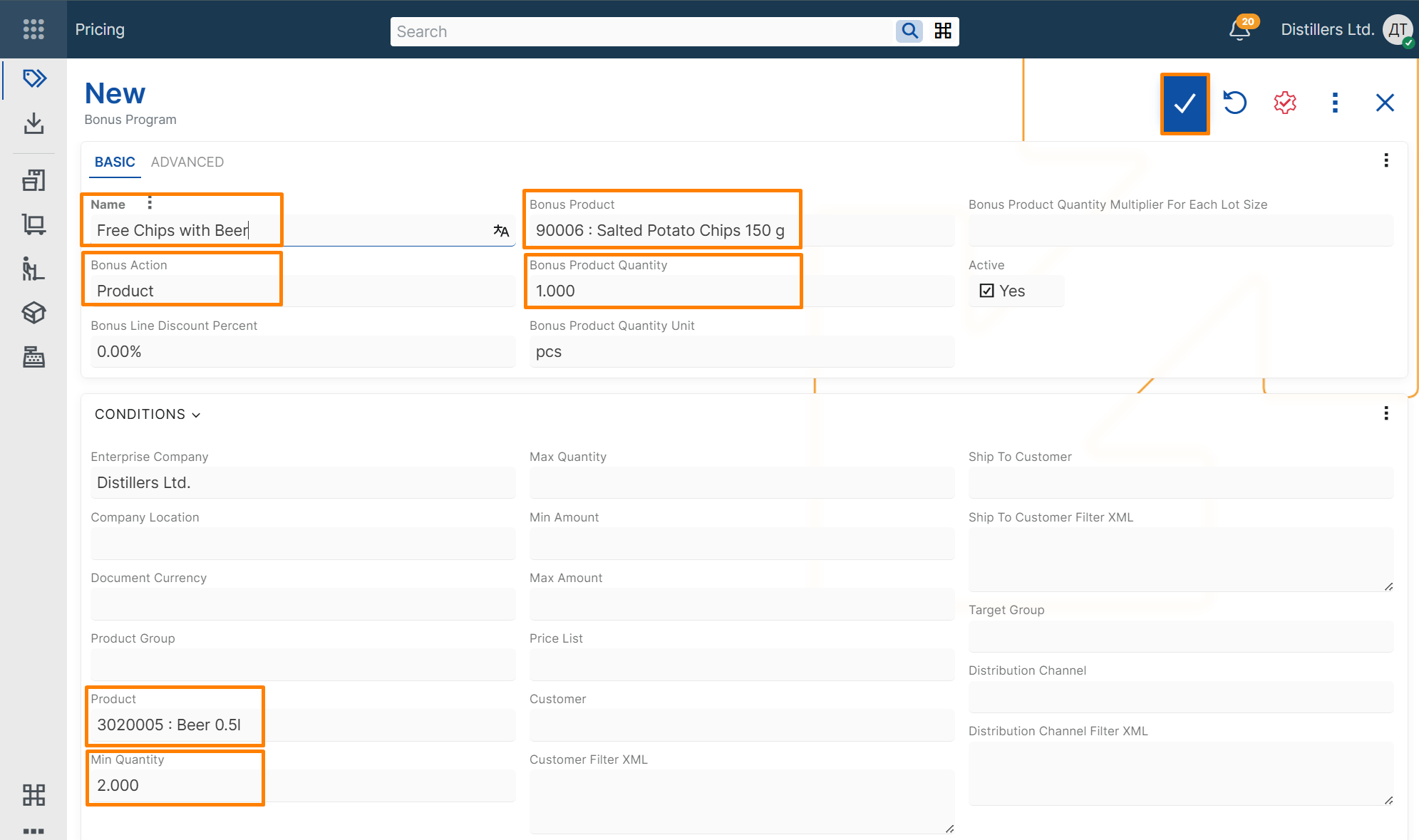
- In the new bonus program record, enter the following:
- Name – text that identifies the bonus program
- Bonus Action – select Product to create a product bonus program
- Bonus Product – the product that is added as a bonus
- Bonus Product Quantity – the quantity of the bonus product
- Bonus Product Quantity Unit – the measurement unit of the bonus quantity
- Product – the product that activates the bonus
- Min Quantity – the minimum ordered quantity required for the bonus to apply
- Save the record.
Note
Enterprise Company is filled in automatically with the current enterprise company.
Verify the result
- Create a new Sales Order.
- Select a customer.
- Add a line for the same product with a quantity that fulfills the bonus program condition.
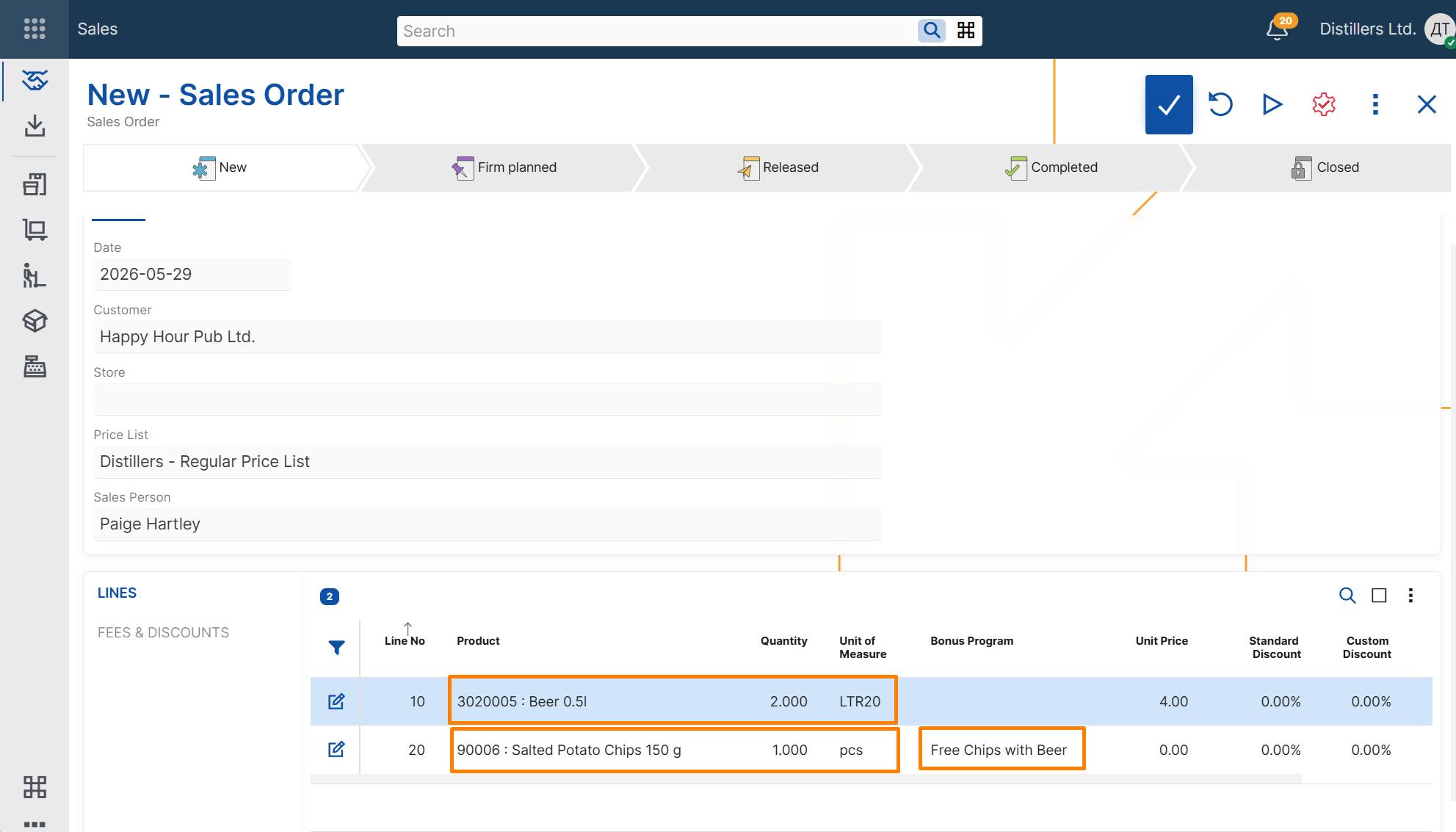
- Review the sales order lines and verify that an additional line is added for the bonus product.
The Product field in the additional line should contain the bonus product from the bonus program.
The Quantity field in the additional line should contain the bonus quantity defined in the bonus program.
The Bonus Program field in the additional line should contain a reference to the bonus program that was just created.