Default attribute values
Default attribute values automatically fill fields when a new record is created. They can be restricted to a particular context—for example, a user, role, enterprise company, location, language, or record category.
Concepts
ERP.net has two entities for field defaults.
The existing Data Entry Default Values entity stores defaults for columns in data-entry forms; in the Desktop Client, users can save a field’s current value with optional conditions, such as the current user or document type.
The newer Entity Attribute Default Values is a new entity and table for storing defaults for attributes of ERP.net repositories. It is the preferred approach for creating new default-value settings. Settings created through this approach can be used by both the Web Client and the Desktop Client. The existing Data Entry Default Values entity remains available; the new entity does not replace or migrate its records.
Comparative table between the two entities:
Sys_Default_Values- old table |
Sys_Entity_Attribute_Default_Values - new table |
|---|---|
TableName |
RepositoryName |
ColumnName |
AttributeName |
DefaultValueField |
DefaultInternalValue |
ConditionUserLogin |
ConditionUser |
ConditionRole |
ConditionRole |
ConditionEnterpriseCompany |
ConditionEnterpriseCompany |
ConditionDocumentType |
ConditionEntityCategory |
ConditionFormName |
N/A |
ConditionUserMachine |
N/A |
PanelName |
N/A |
| N/A | DefaultTextValue |
| N/A | ConditionEnterpriseCompanyLocation |
| N/A | ConditionLanguage |
Why use a separate entity?
The existing model identifies a default primarily by table and column and has its own set of conditions. The new model stores both the internal value and its display text, and provides conditions for context such as location, language, and entity category. These differences make the new entity a better fit for the new Web Client workflow.
The new conditions are context conditions. For example, a sales order’s document type can determine which default applies. Changing the role, or Enterprise company, Language forces the system to match any other default-value record and set it properly according to the new context.
How can I access the new table and records in Desktop client?
To review defaults stored in Entity Attribute Default Values within Desktop Client, go to Setup/Tools/Entity Navigator. In the field choose table "Sys_Entity_Attribute_Default_Values" and Show data. Use the navigator to locate settings for the relevant repository and attribute, then review their values and conditions. These are separate from the existing Data Entry Default Values settings.
Set a default in the Web Client
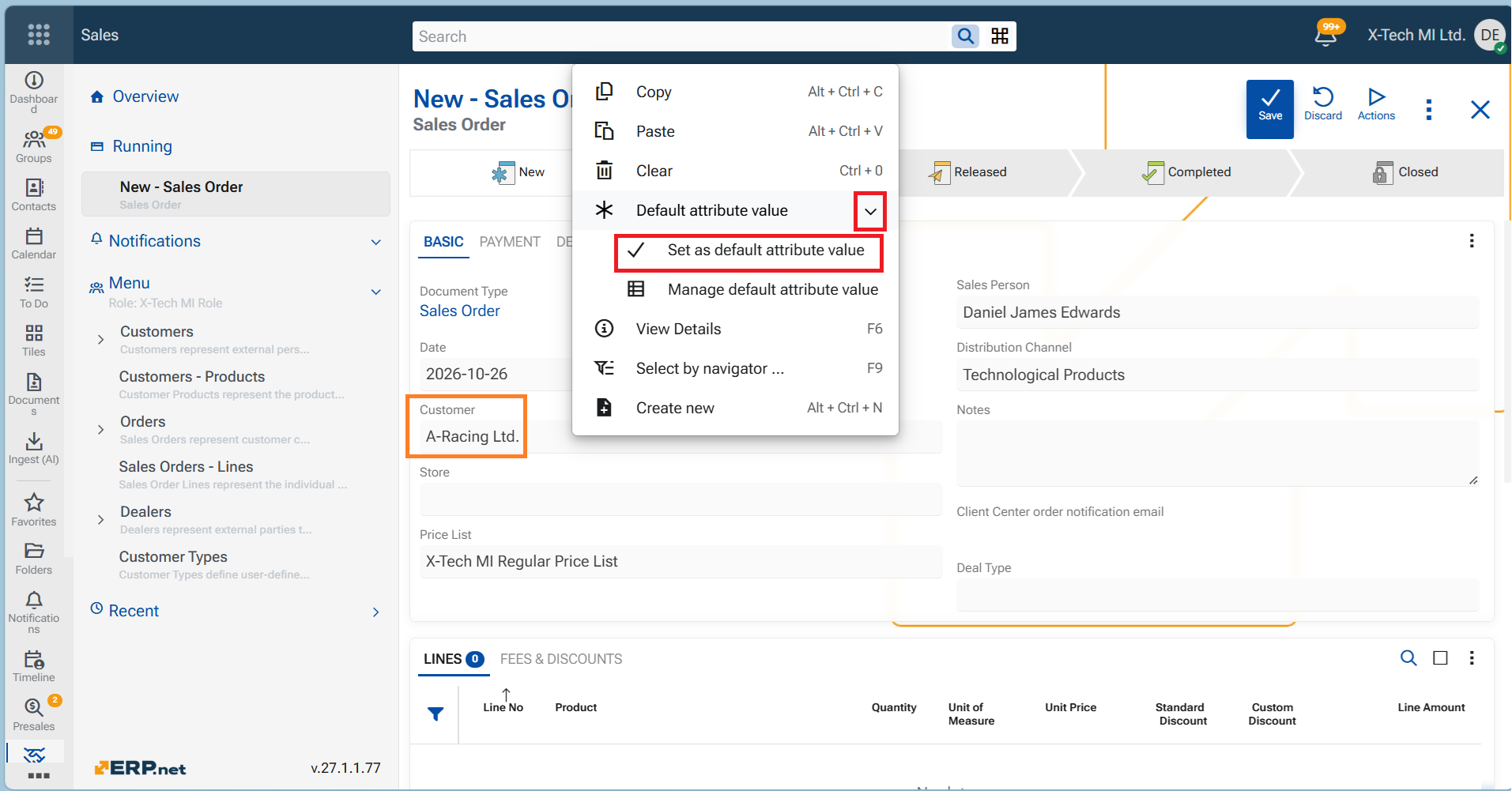
Users with Global Layout Manager system permissions can see and choose Default attribute value → Set as default attribute value. The options are not available to other users. (The system permission is granted through the Desktop client).
First, enter or select the value to save. The dialog then lets you select the context conditions under which that value should apply. This follows the familiar Desktop Client idea of saving a field value with optional conditions, while using the new entity to store the Web Client setting.
The available conditions are:
| Condition | Meaning |
|---|---|
| User | Apply for the specified user. |
| Role | Apply when the current user has the specified role. |
| Enterprise company | Apply for the specified enterprise company. |
| Enterprise company location | Apply for the specified location. |
| Language | Apply for the specified current language. |
| Entity category | Apply when the record has the specified category; for the tested sales-order scenario, this is associated with document type. |
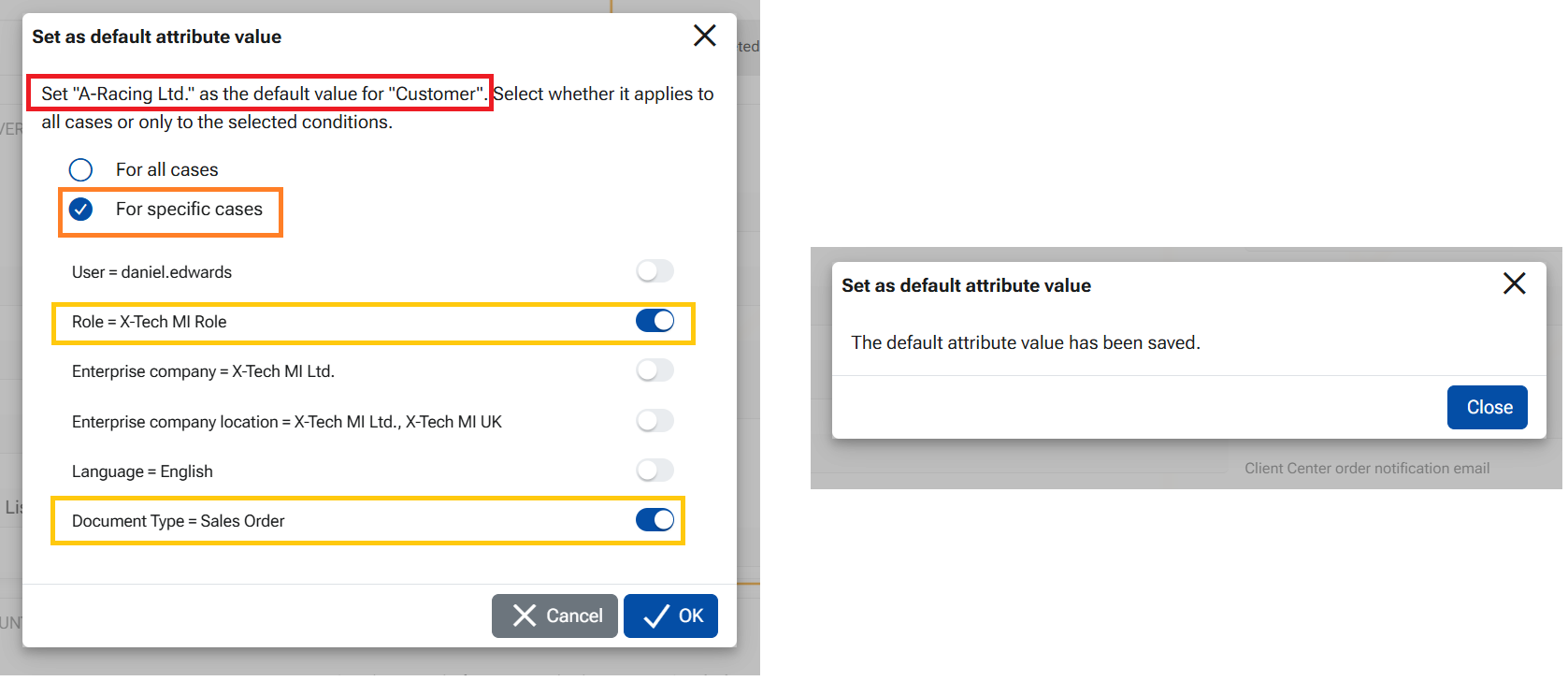
A condition that is not selected does not restrict the default. If no conditions are selected, the setting is an unconditional default: it can be applied immediately when a new record is created. Selecting conditions restricts it to a matching context.
A record of an "Entity attribute default value".
Saving a different value for the same attribute and the same set of conditions updates the existing default-value record rather than creating another record.
Manage saved values
Choose Default attribute value → Manage default attribute value from the field menu to open the Entity Attribute Default Values navigator, where saved settings can be reviewed and edited.
How context changes affect a default
Defaults are context-sensitive. In the tested Web Client behavior, changing the relevant enterprise company, location, role, or language causes the applicable default to be evaluated against the new context and the field value to change accordingly. Changing the document type also caused the applicable default to be reevaluated in both clients. By contrast, changing session context alone did not automatically refresh an already open Desktop Client document in the tests.
Administrators should take care when configuring defaults for important fields: a context change in the Web Client may change a value that was already displayed in the form.
Learn how to use Entity Attribute Default Values HERE
Existing defaults and precedence
The two entities can contain settings for the same field. Based on the sales-order tests:
- Web Client: when applicable settings exist in both entities, it uses the setting from Entity Attribute Default Values.
- Desktop Client: an applicable setting from Data Entry Default Values takes precedence, even if a setting in the new entity matches more conditions. If there is no applicable old setting, Desktop can use the new setting.
- A setting saved in the new entity can therefore also affect Desktop users, even when it was created through the Web Client.
Before creating or changing a default, review applicable settings in both entities. In particular, check for the same field with overlapping contexts; do not assume that a setting created through one client affects only that client.
Desktop Client: examples of defaults stored in both entities
The examples below compare a default for Customer in the old Data Entry Default Values entity with one in the new Entity Attribute Default Values entity.
| Example | Existing entity: Customer | Existing conditions | New entity: Customer | New conditions | Context | Customer applied in Desktop |
|---|---|---|---|---|---|---|
| 1 | A Racing Ltd | None | Professional Components Ltd | None | Create a sales order of any type | A Racing Ltd |
| 2 | A Racing Ltd | Document Type = Direct Sale | Professional Components Ltd | Document Type = Direct Sale | Document Type = Direct Sale | A Racing Ltd |
| 3 | A Racing Ltd | Document Type = Direct Sale | Professional Components Ltd | Document Type = Direct Sale; Role = X Tech MI Role | Document Type = Direct Sale; Role = X Tech MI Role | A Racing Ltd |
| 4 | A Racing Ltd | Document Type = Direct Sale | Professional Components Ltd | Document Type = Direct Sale; Role = X Tech MI Role | Document Type = Shop Order; Role = X Tech MI Role | A Racing Ltd — observed result¹ |
What the first three examples show: when both settings are applicable, the Desktop Client selects the value from the existing entity, even when the new setting has more matching conditions.
Example 4 shows the preference of Desktop client to apply the old entity default value even though the new default value matches more conditions.
Important
Administrators should carefully review saved settings — records in both the existing DataEntryDefaultValues table and the new EntityAttributeDefaultValues table — and avoid configurations that could apply to the same field in the same context. Although tests of the feature show that Desktop client "prefers" values from the old table, administrators need not rely on the order in which matching values are found to select a particular default.